
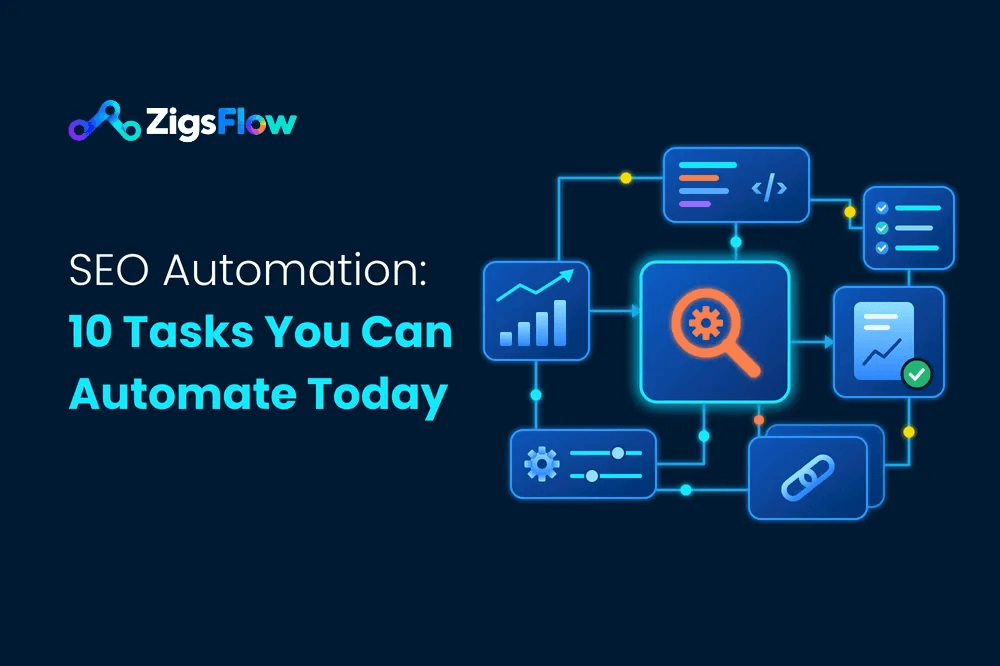
Quick answer: SEO automation means using tools, scripts and AI to run repeat SEO tasks on a schedule, so you don’t have to do them by hand. The tasks that automate well have a clear right or wrong answer: rank tracking, site audits, broken link checks, indexing checks, meta tag checks, reports and alerts. Strategy, final content and link outreach still need a person.
Most SEO work isn’t strategy. It’s checking. Did rankings drop? Is that page still indexed? Did someone break a link in the last site update? Checking the same things every week is where the hours go, and it’s exactly the kind of work a script does better than you.
This guide covers 10 SEO tasks you can automate today. For each one you get the free or low-cost tool to use, a simple way to set it up, and what you should still check yourself. You don’t need to be a developer. If you can use Google Sheets, you can do most of this.
What is SEO automation?
SEO automation is the use of software to run repeatable SEO tasks without manual effort. A tool collects data, checks it against a rule, and then does something with the result: saves it to a sheet, sends you an alert, or drafts a fix for you to review.
Every SEO automation has the same three parts:
- A trigger: when it runs. Every morning, every Monday, or when something changes.
- A check: what it looks at. Rankings, status codes, title length, clicks.
- An action: what happens next. A new row in a sheet, an email, a Slack message.
Seen this way, automating SEO stops sounding like a big project. You’re writing down the checks you already do and handing them to a machine.
Which SEO tasks should you automate?
Use one simple test. Automate a task when its output is easy to check and a mistake is cheap to catch. A broken link check is either right or wrong. A content strategy isn’t. If you’d need to think hard to know whether the result is any good, keep a person in charge of it.
Here’s the full list before we go through each task.
| # | SEO task | Free way to start | How often |
|---|---|---|---|
| 1 | Rank tracking and drop alerts | Search Console + Looker Studio | Weekly |
| 2 | Technical site audits | Ahrefs Webmaster Tools | Weekly or monthly |
| 3 | Broken link and status code checks | Google Apps Script | Daily |
| 4 | Indexing checks | URL Inspection API | Weekly |
| 5 | Title, meta description and alt text checks | Screaming Frog (free up to 500 URLs) | After each crawl |
| 6 | Internal linking suggestions | site: search + crawl data | Each new post |
| 7 | Keyword research and clustering | Search Console + ChatGPT or Claude | Monthly |
| 8 | SEO reports and dashboards | Looker Studio | Weekly or monthly |
| 9 | Content decay alerts | Search Console compare view | Monthly |
| 10 | Backlink and brand mention alerts | Google Alerts + Ahrefs Webmaster Tools | Ongoing |
1. Rank tracking and ranking drop alerts
What you automate: collecting your keyword positions and getting told when one drops.
Checking rankings by hand is slow, and it’s often wrong because Google shows different results by location, device and search history. Search Console already records the average position for every query your site appears for. You just need to pull that data out on a schedule.
How to set it up:
- Connect Search Console to Looker Studio (free) with its built-in Search Console connector.
- Build one table with query, clicks, impressions and average position, compared with the previous period.
- Schedule an email delivery so the report reaches your inbox every Monday.
Want an alert instead of a report? An n8n workflow can pull Search Console data each week, compare positions with last week and send you a Slack or email message when a keyword falls more than five places. Paid tools like Semrush, Ahrefs and SE Ranking do the same with daily tracking.
Check yourself: why it dropped. The alert tells you something changed. Working out whether it was a Google update, a competitor or a broken page is still your job.
2. Scheduled technical site audits
What you automate: crawling your site and listing technical problems such as 404 pages, redirect chains, missing canonical tags, slow pages and blocked resources.
Sites break quietly. A developer pushes an update, a plugin changes your URL structure, and nobody notices until traffic falls. A scheduled audit catches it in days instead of months.
How to set it up:
- Free: verify your site in Ahrefs Webmaster Tools and schedule its Site Audit to run every week.
- Desktop crawler: Screaming Frog SEO Spider crawls up to 500 URLs for free. Scheduled crawls need the paid licence, and they can export results straight to Google Sheets.
- Already built in: Search Console emails you when it finds new indexing or Core Web Vitals problems. Make sure those emails go to an inbox someone actually reads.
Check yourself: priority. An audit can flag 400 “issues” and only ten of them matter. Fix the problems on pages that earn traffic first.
3. Broken link and status code checks
What you automate: checking your important URLs every day and getting an email if any of them stop returning a 200 (OK) status.
You can build this one yourself in about ten minutes with Google Sheets and Apps Script. It’s free with any Google account.
How to set it up:
- Create a Google Sheet and name the tab URLs. Put a header in A1 and your full URLs (with https://) from A2 down.
- Go to Extensions > Apps Script, delete the sample code and paste the script below.
- Click Run once and allow the permissions it asks for.
- Open Triggers (the clock icon), click Add Trigger, then choose Time-driven and Day timer.
function checkStatusCodes() {
  const sheet = SpreadsheetApp.getActiveSpreadsheet().getSheetByName('URLs');
  const urls = sheet.getRange(2, 1, sheet.getLastRow() - 1, 1).getValues().flat().filter(String);

  const requests = urls.map(url => ({ url: url, muteHttpExceptions: true, followRedirects: false }));
  const responses = UrlFetchApp.fetchAll(requests);

  const problems = [];
  const rows = responses.map((res, i) => {
    const code = res.getResponseCode();
    if (code !== 200) problems.push(urls[i] + ' returned ' + code);
    return [code, new Date()];
  });

  sheet.getRange(2, 2, rows.length, 2).setValues(rows);

  if (problems.length) {
    MailApp.sendEmail(
      Session.getEffectiveUser().getEmail(),
      'Status check: ' + problems.length + ' URLs need attention',
      problems.join('\n')
    );
  }
}
Column B now shows each URL’s status code, and column C shows when it was checked. A 301 means the URL redirects, a 404 means the page is gone, and a 5xx code means the server had a problem. If anything isn’t a 200, you get one email with the full list.
Check yourself: keep the list to your important pages, a few hundred at most, because Apps Script stops any single run after six minutes. New to Apps Script? Our Google Apps Script setup guide walks through permissions and triggers step by step.
4. Indexing checks
What you automate: confirming your key pages are actually in Google’s index.
A page that isn’t indexed can’t rank, and pages drop out of the index more often than most people think. Checking them one at a time in Search Console’s URL Inspection tool works for five pages. It doesn’t work for five hundred.
How to set it up: the Search Console URL Inspection API returns the same data as the manual tool, for up to 2,000 URLs a day per property. Call it from Apps Script or from an n8n HTTP Request node, save the coverage status (“Submitted and indexed”, “Crawled – currently not indexed” and so on) next to each URL, and re-run it weekly.
Check yourself: the reason a page isn’t indexed. “Crawled – currently not indexed” usually points to thin or duplicate content, and no script will fix that for you.
5. Title tag, meta description and alt text checks
What you automate: finding pages with missing, duplicate, too-long or too-short titles and descriptions, plus images with no alt text.
How to set it up: any SEO crawler does this. In Screaming Frog, the Page Titles, Meta Description and Images tabs have ready-made filters such as Missing, Duplicate and Over 60 Characters. In Google Sheets, =LEN(A2) gives you the character count of any title you paste in.
AI can draft the fixes too. Give ChatGPT or Claude the page URL, the main keyword and the current title, and ask for three options under 60 characters. If you do this often, turn the prompt into a Claude skill so your rules for length, brand name and tone stay the same every time.
Check yourself: every title and description before it goes live. AI drafts are a starting point. They’re often generic, and sometimes they promise things the page doesn’t deliver.
6. Internal linking suggestions
What you automate: finding pages on your own site that should link to a new or important page.
Internal links help Google find your pages and understand what they’re about, but adding them is easy to forget. Finding link opportunities automates well. Placing the links should stay manual.
How to set it up:
- Free: search Google for
site:yourdomain.com "your keyword"to list pages that already mention the topic. - Crawler: Screaming Frog’s custom search (paid licence) finds every page on your site that contains a phrase.
- WordPress plugin: paid plugins like Link Whisper suggest internal links while you write.
Check yourself: context. A link should help the reader at that exact spot in the text. Ten forced links with the same anchor text help nobody.
7. Keyword research and clustering
What you automate: pulling keyword data and grouping similar keywords so that each group gets one page.
Your best keyword source is often your own Search Console. It shows the real queries people used to find you, including ones you never targeted on purpose.
How to set it up:
- Export the last three months of queries from Search Console (Performance > Search results > Export). The export gives you up to 1,000 rows. For more, use the Search Console API.
- Filter for queries ranking in positions 8 to 20. These “almost there” keywords are usually the quickest wins.
- Paste the list into ChatGPT or Claude and ask it to group the queries by search intent, with one suggested page per group.
Once the process works, run it monthly with an n8n workflow and you’ll get a fresh list of opportunities without opening a single tool.
Check yourself: which clusters deserve a page. AI can group words. It can’t tell which topics bring you customers.
8. SEO reports and dashboards
What you automate: pulling numbers from Search Console and Google Analytics into one report that updates itself.
If you still copy numbers into slides every month, this is the biggest time saver on the list.
How to set it up: in Looker Studio, add Search Console and GA4 as data sources. Both connectors are free and built in. Build one page with clicks, impressions, average position, organic sessions and conversions, then use Share > Schedule delivery to email it weekly or monthly.
Check yourself: the story behind the numbers. A report can tell you organic traffic fell 12%. Explaining why, and what you’ll do about it, is what your manager or client actually wants to read.
9. Content decay alerts
What you automate: spotting pages that are slowly losing clicks, so you can refresh them before they slide off page one.
Content decay is quiet. A post loses a few clicks every month and nobody notices for a year. A simple comparison catches it early.
How to set it up: once a month, compare clicks per page for the last three months with the three months before. In Search Console, the date filter has a Compare tab, so one export gives you both periods. Flag any page that lost more than 20% of its clicks. When the process feels right, move it into Apps Script or n8n with the Search Console API so the list builds itself.
Check yourself: what to change. Sometimes the page is out of date. Sometimes the search intent has shifted. Sometimes the drop is seasonal, and the right move is to do nothing.
10. Backlink and brand mention alerts
What you automate: hearing about new links, lost links and brand mentions without searching for them.
- Brand mentions: Google Alerts is free. Set an alert for your brand name in quotes and send it to your inbox.
- Backlinks: Ahrefs Webmaster Tools shows new and lost links to your verified site for free. Paid plans of Ahrefs and Semrush can email you when links appear or disappear.
- Link metrics in bulk: to check the authority of a list of linking domains, our Ahrefs DR Checker for Google Sheets returns Domain Rating with one formula (you’ll need an Ahrefs API key).
Check yourself: how you respond. An unlinked brand mention is a good reason to email the writer, and that email should come from a person, not a template.
What you should not automate in SEO
Some SEO work looks easy to automate but goes wrong when nobody is watching. Keep a person in charge of:
- Strategy and topic choice. Tools don’t know your business goals, your margins or your customers.
- Publishing content. AI can help you research and draft. But Google’s spam policies treat pages mass-produced mainly to rank, with little value for readers, as scaled content abuse, however they were made. Have someone edit and fact-check everything before it goes live.
- Link outreach. Automated mass emails get ignored or marked as spam, and they can hurt your name with the exact sites you want links from.
- Diagnosing problems. An alert tells you traffic dropped. Finding the cause still takes someone who knows the site.
The safe pattern is simple: let the machine collect, check and draft. Let a person decide and publish.
Free vs paid SEO automation tools
You can cover most of this list without paying for anything. Here’s where each tool fits.
| Tool | What it automates | Cost |
|---|---|---|
| Google Search Console | Ranking data, indexing reports, issue emails | Free |
| Looker Studio | Dashboards and scheduled email reports | Free |
| Google Apps Script | Custom checks and alerts in Sheets and Gmail | Free with a Google account |
| n8n | Multi-step workflows between apps | Free self-hosted, paid on n8n Cloud |
| Ahrefs Webmaster Tools | Site audits and backlink data for your own site | Free |
| Screaming Frog SEO Spider | Crawls and on-page checks | Free up to 500 URLs, paid licence for scheduling |
| ChatGPT or Claude | Drafting titles, alt text, briefs and keyword groups | Free plans, paid plans for heavier use |
| Semrush, Ahrefs, SE Ranking | All-in-one tracking, audits and alerts | Paid |
How to start with SEO automation this week
- List your repeat tasks. For one week, write down every SEO task you do more than once and how long it took.
- Pick one. Choose the task that is boring, frequent and easy to check. For most people that’s reporting or broken link checks.
- Build the simplest version. A Google Sheet with a daily trigger beats a ten-step workflow you never finish.
- Run it next to your manual check for two weeks. If the results match, stop doing it by hand.
- Add the next one. One new automation a month adds up fast.
Want a head start? The ZigsFlow automation library has Apps Scripts, n8n workflow templates and AI skills you can copy and set up, each with the steps and the accounts you need. If n8n is new to you, start with our beginner’s guide to n8n.
Frequently asked questions
Can SEO be fully automated?
No. Data collection, monitoring, audits and reports can be automated. Strategy, content quality and relationship building still need people, because they depend on judgment a tool doesn’t have.
Can ChatGPT do SEO?
ChatGPT can help with parts of SEO, like drafting titles and meta descriptions, grouping keywords, writing outlines and explaining audit issues. It can’t see your Search Console data unless you give it to the tool, and it can be confidently wrong, so check everything it produces.
Will AI replace SEO?
AI is changing how people search and how SEO work gets done, but it automates tasks, not decisions. Someone still has to choose what to publish, fix what the tools flag and own the results.
Does Google penalize automated or AI content?
Google says it rewards helpful content however it’s made. It acts against content made mainly to manipulate rankings, including pages mass-produced with little value for readers.
What is the best free SEO automation tool?
Start with Google Search Console and Looker Studio for tracking and reports, and Google Apps Script for custom checks. Together they cover most SEO monitoring at no cost.
Do I need to know how to code to automate SEO?
No. Looker Studio reports, Search Console alerts and scheduled crawls need no code at all. For custom checks, you can copy a ready-made Apps Script or import an n8n template and change a few settings.
Automation won’t do your SEO for you. What it does is make sure the boring checks happen every week, even when you’re busy, so your own time goes to the work that actually moves rankings.